Can't find what you're looking for?

Tell us what you were searching for and we'll get back to you.

  • Contact Us
US
CA English (Canada)
US English (US)

Quandri Knowledge Hub

Can't find what you're looking for?

Tell us what you were searching for and we'll get back to you.

Browse topics

  • Welcome to Quandri
    • Renewal Intelligence Platform
      • FAQs
        • Support
          • Updates

            Can't find what you're looking for?

            Drop us a message
            • Knowledge Hub
            • Renewal Intelligence Platform
            • Policy Checking
            • Update Progressive Interface Settings

            Update Progressive Interface Settings

            Updated October 6th, 2025 · 2 min read

            On this page

            How to add Quandri activity code to RWQ Need more help?


            Some customers have reported that automated policy analysis for Progressive policies are only occurring after the renewal date has passed. This is due to Progressive initially downloading renewals under a unique code (often “RWQ”, but it can vary), which isn’t configured to trigger the automated activity monitored by Quandri. Once the insured pays for the renewal, the policy is re-downloaded under a standard code that does trigger Quandri, resulting in a delayed response. 

            To ensure timely processing, interface settings need to be updated so the initial Progressive renewal code also routes the activity to Quandri.


            How to add Quandri activity code to RWQ

            1. From Homebase select Configure on the Navigation Panel
            2. Continuing on the Navigation Panel select Interface > Company/Broker
            3. Under Interface Setup, highlight the carrier you would like to update
            4. Select the edit button (pencil icon)
            5. Select the Status Codes tab
            6. Highlight the RWQ status and select the edit button (pencil icon)


            7. In the Policy/Activity Code & Status pop up window, under Activity, click the down arrow in the Policy download dropdown
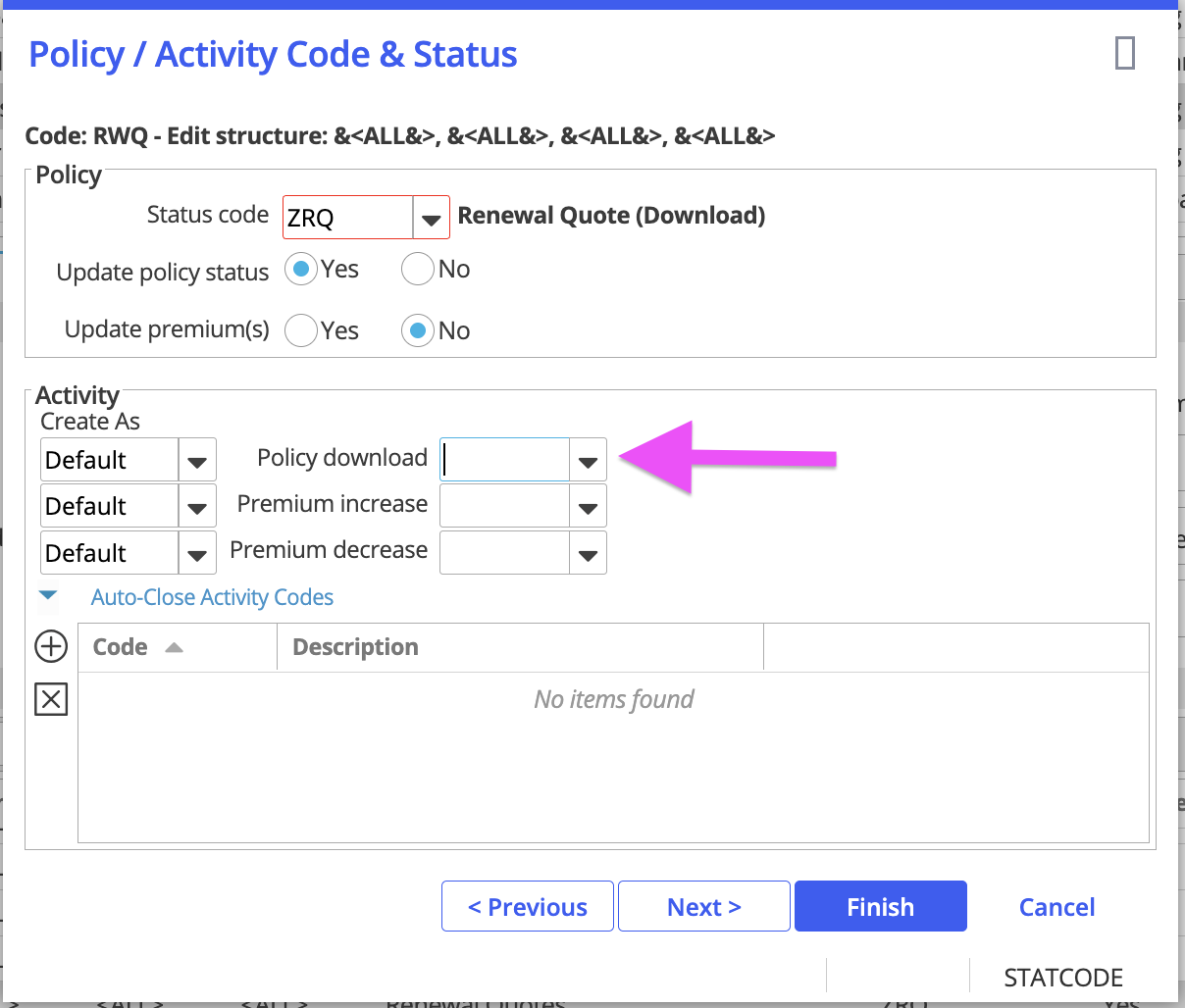
             

            8. Select activity code being used for Quandri renewals processing
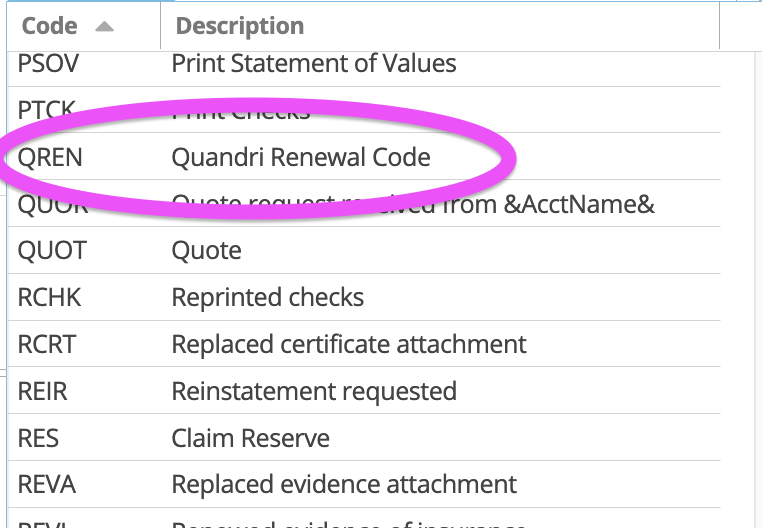
            9. Select Finish in this pop up window

            10. Select Finish on the Interface Setup page 


            Need more help?

            Reach out to Quandri Support with your query if you can't find what you are looking for in our Knowledge Hub.


            enhance code modernize code

            Was this article helpful?

            Yes
            No
            Give feedback about this article

            Related articles

            • Best Practices
            • Policy Checking Capability Workflow
            • How to add new Carriers
            • Policy Prioritization
            • When to use Carriers, Coverages, or Rules

            • Customer Stories
            • Blog
            • Newsroom
            • Quandri.io

            Copyright © Quandri 2026

            Privacy policyTerms and conditionsCookies Policy

            Knowledge Base Software powered by Helpjuice

            Expand